Templates
A template is what a clip looks like before your own colours and type are put on it. Reelwire writes and maintains them; you choose which one a source is drawn through, and your brand supplies the rest.
The screen lists only the templates offered to this workspace. A template you are not offered is neither shown nor mentioned, and it is not available to a stream or a post list either.
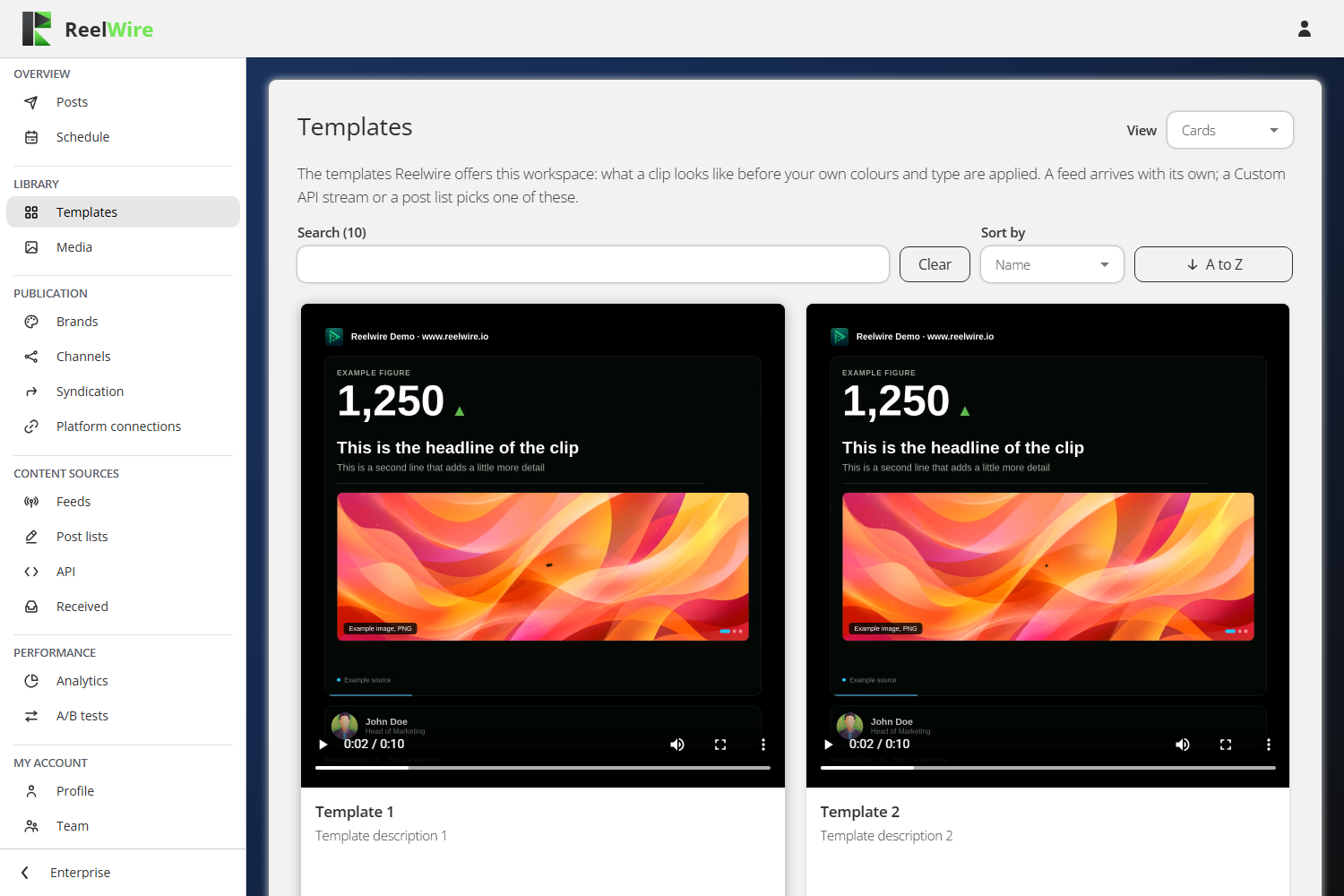
The View picker in the top right switches between Cards and List, and remembers your choice in that browser.
Preview shows the template, not your clip
Preview plays a reference video for a chosen variant, version and aspect ratio. It is an example: example content, example brand. A real clip is drawn with the data that arrives and with the brand of the channel it is made for. If you want to judge your own brand against a template, the brand editor's Review column is the other half of the picture.
A variant is a cut of the template. A version is a build of it. Which variant and which version a channel wears is decided where the channel subscribes to the source, under Channels, not here.
Direct export
Direct export fills a template in once and hands you the result, without a channel, a source or a post. It is for the clip you need for something else: a one-off, a mock-up, a still for a deck.
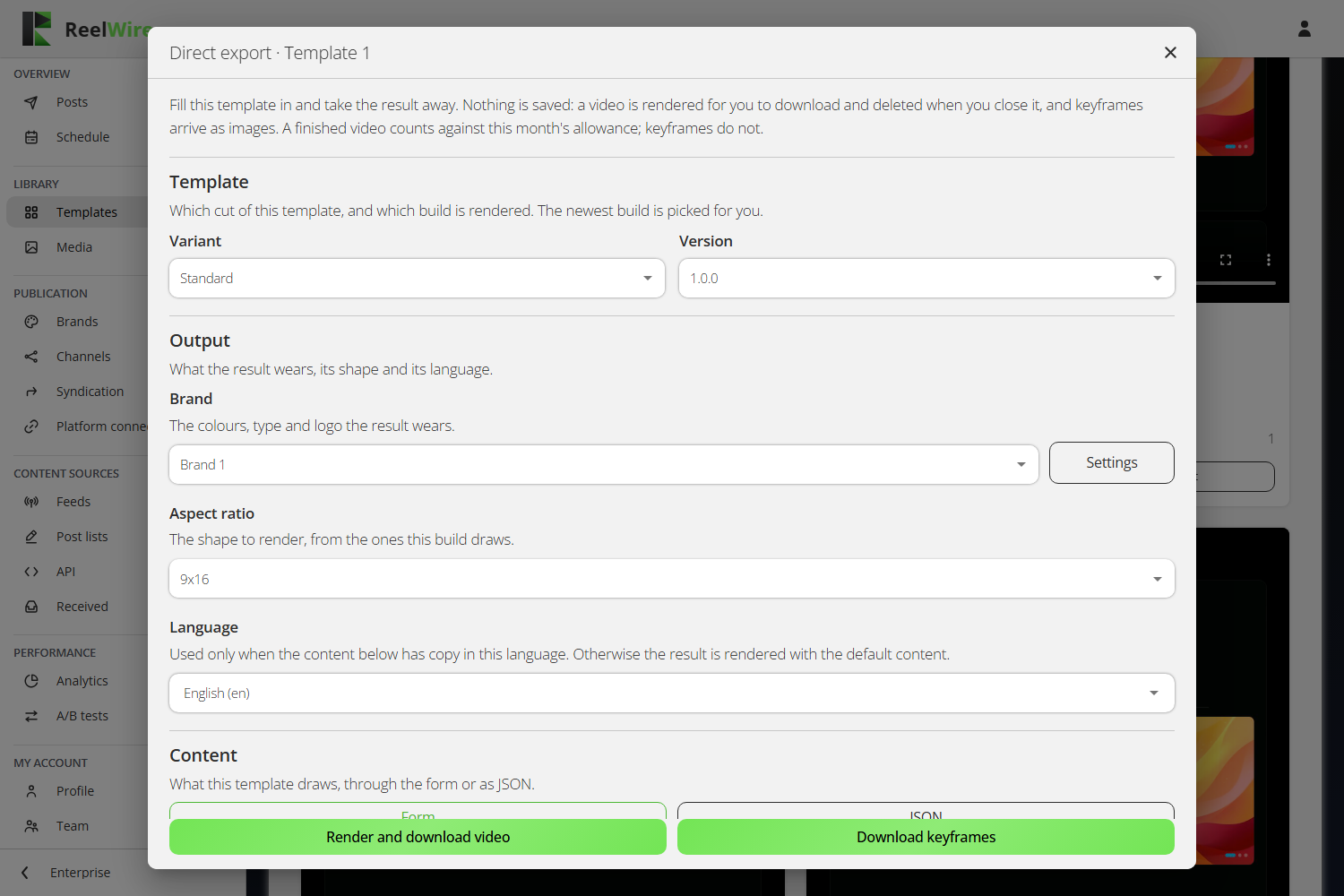
You answer the three questions a channel would otherwise have answered: which brand, which shape and which language. Then you fill in the content either through the generated form or as JSON. Fill with the template's example loads a worked example you can edit, which is the fastest way to see what a template expects.
Two things are worth knowing before you use it.
Nothing is saved. The rendered video lives only inside that dialogue. Closing it, or closing the export, or navigating away, deletes the file. If the render finished but the video did not arrive, the button reads Try again rather than Download, and pressing it fetches the file again. Once you close, it is gone and you would have to render it a second time.
A finished video counts against your monthly allowance. Keyframes do not. So a still you need at exact frame 90 is free, and a video is not.
While a video is rendering, the dialogue distinguishes waiting from drawing: "Waiting for a free renderer, with 3 clips in front of it" is a normal queue, not a stall. A renderer draws one clip at a time and takes your channels' posts as well as this one. The clock counts from the moment you pressed the button, because the wait is part of what you sat through.
Keyframes
Download keyframes saves one PNG per frame you name, together in one zip. The dialogue works out how long the clip runs first, because for some templates that depends on the content, and then tells you the facts you need: how many frames, at what rate, and that frames count from 0, so the last one is one less than the total. Each row takes a name and a frame number, and the Time column converts the frame to seconds so you are choosing an instant rather than an integer. One export holds at most 60 keyframes.
Both exports are named after what made them: the template, the variant, the version, the brand, the shape and the language. Two exports of one template in two languages do not land in your downloads folder as the same name.