Media library
The images, videos, sound and fonts your clips use, kept exactly as you uploaded them. Nothing is resized or converted: the renderer scales what it draws, so a file is stored and counted at the size it arrived.
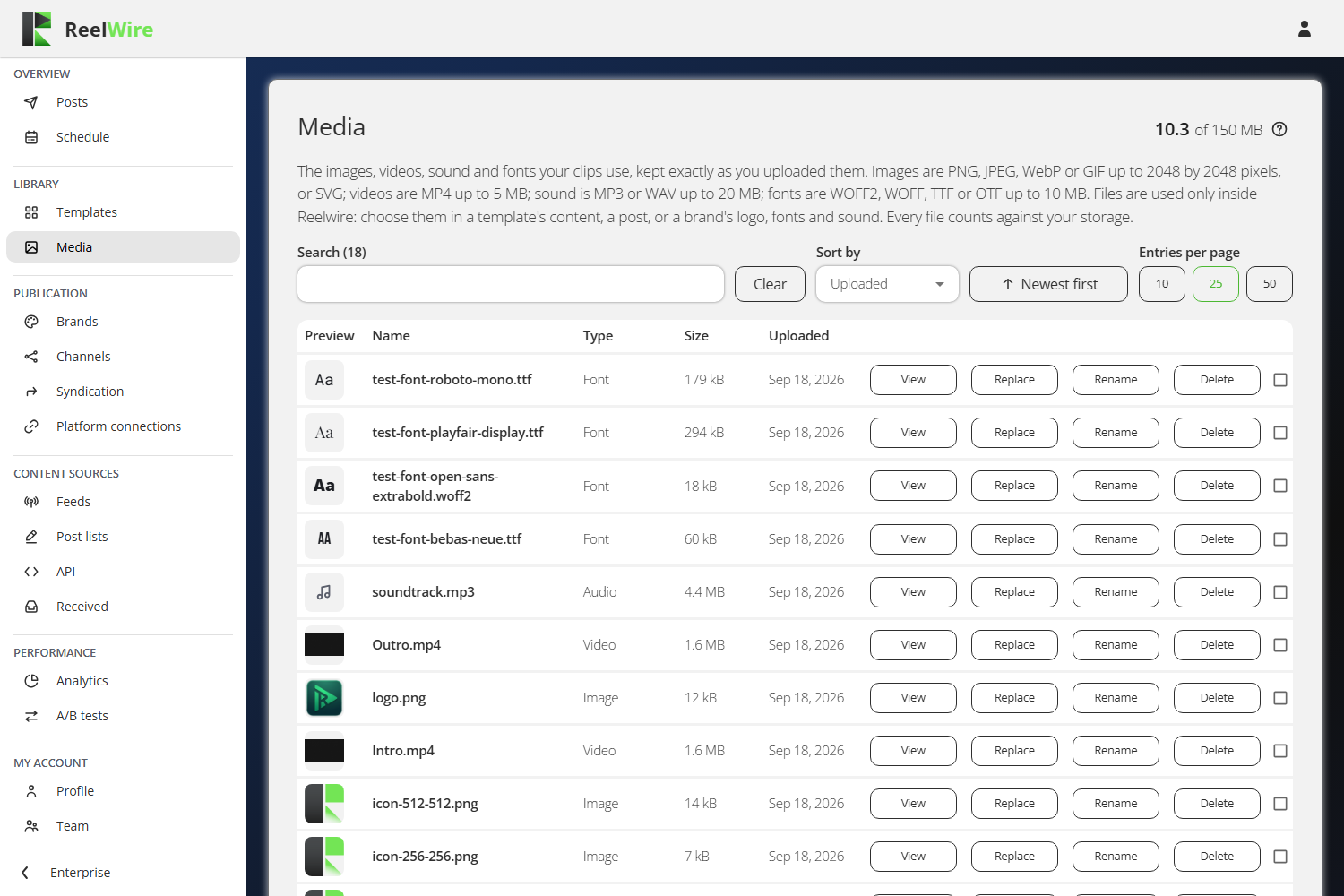
Files are used inside Reelwire only. There is no public address and nothing to copy out: you choose a file in a template's content, in a post, or in a brand's logo, fonts and sound. The storage is for clips, not for hosting pictures elsewhere.
Two things people get wrong
A refusal appears at the bottom of the card, beside the Upload button. Files are uploaded one at a time, so a file that does not fit stops only itself and everything before it is already in the library. The reason, most often a file larger than what is left of your media storage, is printed where you are standing when you press Upload rather than at the top of a long list.
Deleting a file does not just take it out of the list: it takes it out of everything using it. Before the Delete button turns on, the dialogue looks up where the file is used and lists it. A file in use is removed from each brand named, and posts that have not gone out yet are published without it.
Rendered clips are not media
The second card lists the clips Reelwire rendered for your channels. They live in their own share of the storage and behave differently: when that share is full, the oldest clip is removed to make room for the newest, automatically.
A clip that a post still needs cannot be deleted, and the reason is printed on the row under the disabled button. Deleting a clip that a post is waiting on cancels that post and the rest of its posting job.
The storage split
The third card divides your storage between the two. The two sides behave differently, which is why they have separate shares: media is kept until you delete it and an upload that does not fit is refused, while rendered clips rotate oldest first.
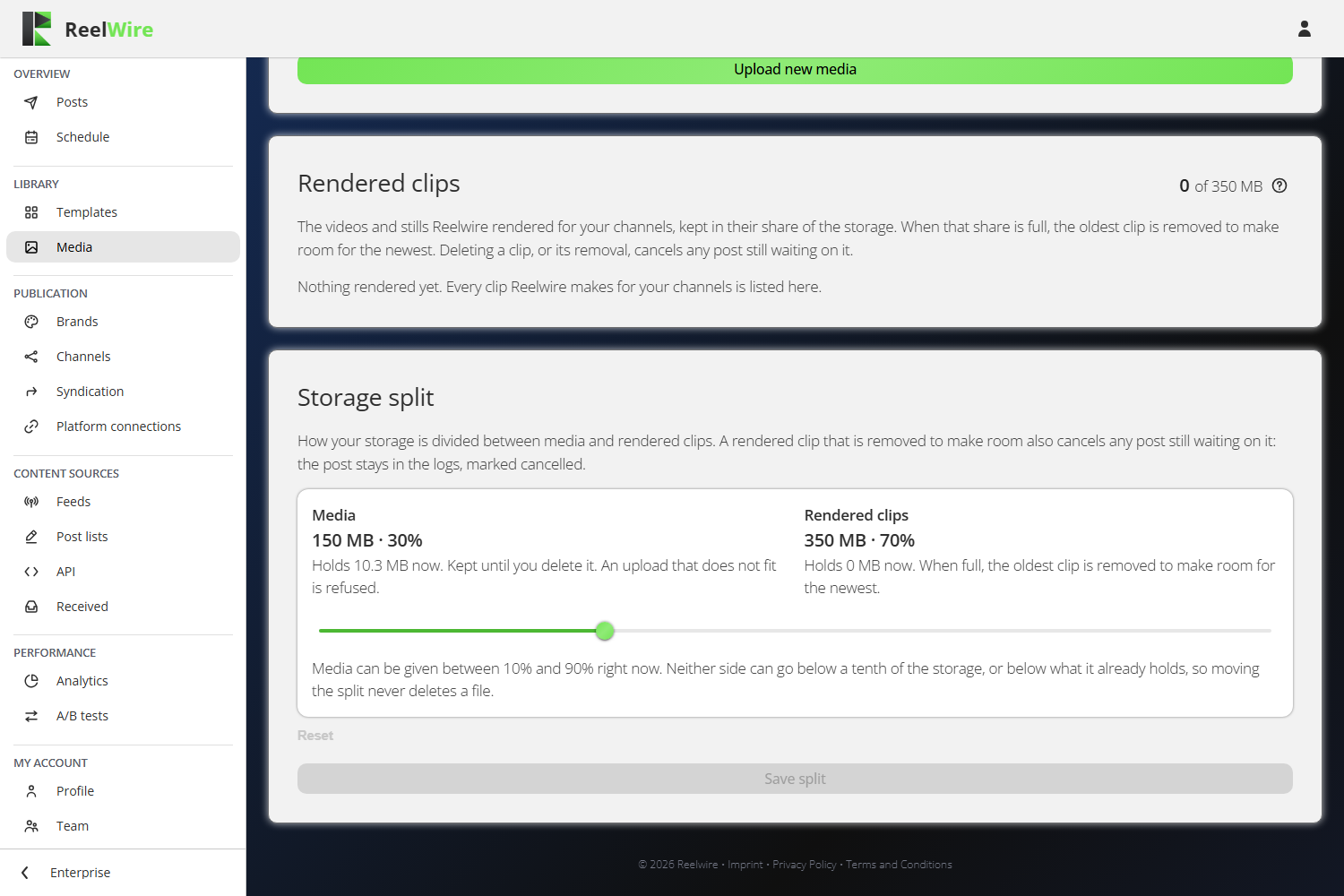
Moving the split never deletes anything. The slider cannot go below what either side already holds, or below a tenth of the storage for either side, and the line under it says what the range is. If both sides are already over what a smaller share would fit, the slider locks and says so: delete files, or add storage on the Plan screen.
Only the owner of the workspace can move it. Everybody else sees the figures.